13 Questions, Answered
TradeLocker Automation FAQ
Answers written to match our TradingView-to-TradeLocker how-to guide above
Can you connect TradingView to TradeLocker?
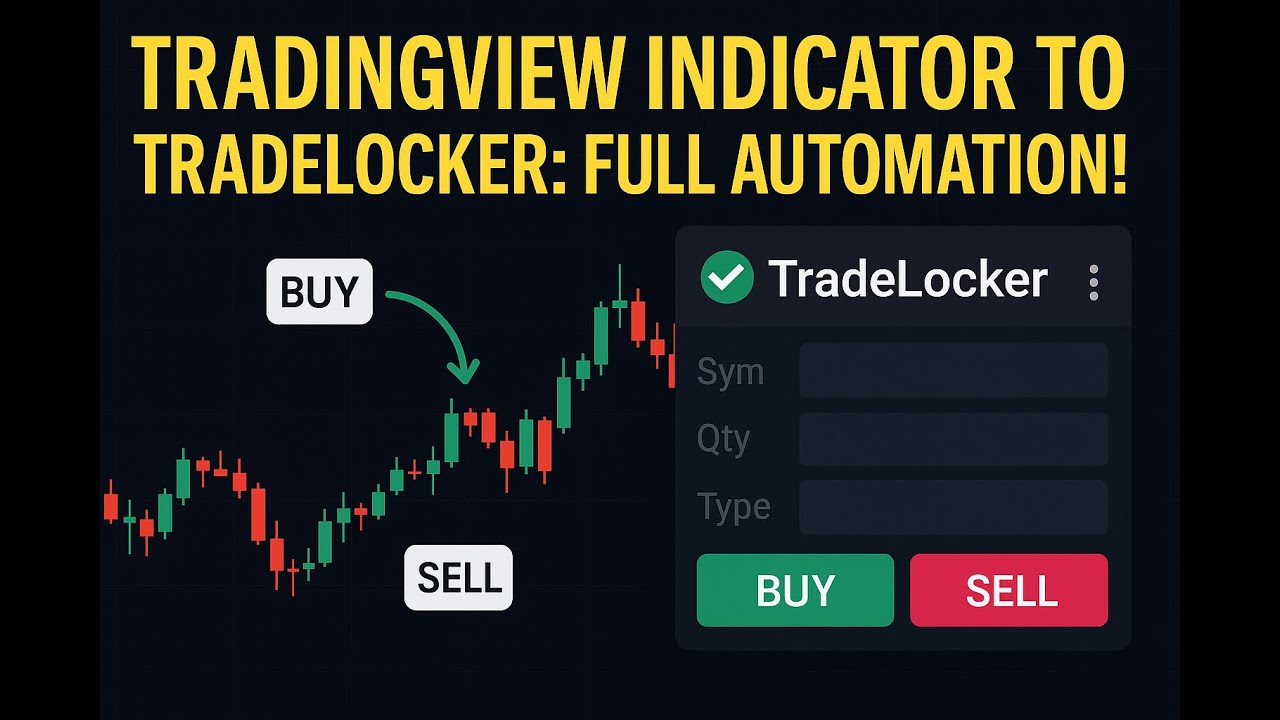
Yes. TradingView cannot place orders in TradeLocker on its own, but PickMyTrade connects the two using webhook alerts. When your TradingView alert fires, PickMyTrade receives it and places the matching order in your TradeLocker account automatically, with no coding and no computer left running. Most traders are live in about five minutes.
How do I connect TradeLocker to PickMyTrade / TradingView?
Create a PickMyTrade account, open the TradeLocker connection screen and enter your TradeLocker email, password, and server or broker environment, choosing demo or live. Then generate your alert message and webhook URL in PickMyTrade, create an alert in TradingView, paste the message into the alert box and the webhook URL into the alert's Notifications tab. Fire a test alert to confirm it works.
What credentials and information does TradeLocker require to connect?
PickMyTrade needs the same details you use to log in to TradeLocker: your email, your password, and your server or broker environment name. You also tell PickMyTrade whether the account is a demo or a live account. Because TradeLocker is offered through many brokers, the server value is what points PickMyTrade at the correct broker environment.
Where do I find my TradeLocker server name / broker environment?
Your server or environment name appears on the TradeLocker login screen, next to the email and password fields, on both the web and mobile apps. It is set by the broker that gave you the TradeLocker account. If you are not sure which one to use, open your broker's TradeLocker login page and copy the server value exactly as shown, or ask your broker's support which environment your account uses.
Do I need to know how to code to automate TradingView to TradeLocker?
No. PickMyTrade is a no-code tool. It generates the alert message and webhook URL for you, and all you do is paste them into a TradingView alert. There is nothing to program, no API keys to write, and no plugin to install.
Can I copy one TradingView signal to multiple TradeLocker accounts?
Yes. PickMyTrade works as a TradeLocker trade copier, so a single TradingView alert can place the same trade across several TradeLocker accounts at once. Each account can have its own quantity multiplier (for example 0.5x, 1x and 2x from the same alert) or use risk-percentage sizing, so you can scale size up or down per account while keeping the same entry, stop-loss, and take-profit.
Can I test on a TradeLocker demo account before going live?
Yes. When you add your TradeLocker credentials you choose demo or live, so you can connect a demo account and run your whole setup on paper first. Testing on demo is the safest way to confirm your alerts, symbol mapping, and sizing behave the way you expect before you risk real money.
What order types, stop loss and take profit options are supported?
On the webhook path PickMyTrade supports market and limit orders and lets you attach a stop-loss and a take-profit to the entry. You can also reverse or flip a position and send a close-all command. If your TradingView strategy manages its own exits, including multiple take-profits such as TP1 and TP2, let the strategy handle them and do not add extra stop-loss or take-profit settings in PickMyTrade; if it does not, set them once in PickMyTrade and every alert follows them.
Can I trade a different symbol than the one in my alert (symbol mapping)?
Yes. PickMyTrade includes symbol mapping, so the symbol in your TradingView alert can be different from the symbol executed in TradeLocker. This is useful when your chart symbol and your broker's instrument name do not match exactly, and it lets you point one alert at the correct TradeLocker instrument. You can enter the symbol to trade directly in PickMyTrade; it is mandatory for stop-loss types such as Ticks or Total Profit/Loss, and if you leave it blank PickMyTrade uses the symbol from your TradingView chart.
Why did my trade fail to place / get rejected, and how do I fix it?
The most common causes are a symbol that does not match a symbol your broker lists, a position size larger than your account or broker allows, a closed market, or not enough margin. Connection issues are usually a wrong password or a server or environment value that does not match your TradeLocker login. Open the PickMyTrade alert log to see exactly what arrived and what the broker returned; that tells you whether the fix is in the TradingView alert, the PickMyTrade settings, or your broker account. If a trade never appears at all, confirm your TradingView plan is Pro or higher (free plans cannot send webhooks), that the webhook URL and the alert message are pasted into the right fields, that your TradeLocker connection is active, and that your strategy is actually generating signals. If you push trades to a different PickMyTrade account, also check its token.
Which assets and brokers on TradeLocker are supported?
PickMyTrade works with whatever instruments your TradeLocker broker offers, which usually means forex pairs (for example EUR/USD, GBP/USD, USD/JPY), CFDs, indices, commodities, and metals. Because TradeLocker is white-labelled by many brokers, your exact symbols, spreads, and hours come from your specific broker, and PickMyTrade routes the orders your alerts create to that account.
Does this work with prop firms that use TradeLocker, and what are the rules?
PickMyTrade can connect to a TradeLocker account whether it is personal, demo, or funded, and some prop firms do run on TradeLocker. Copy trading and automation rules vary by prop firm and change over time, so always confirm your firm's current policy before you automate. Firms differ on whether they allow webhook automation, how many accounts you may copy across, and how identical fills can be. PickMyTrade copies your own alerts across your own accounts, but staying inside each firm's rules is your responsibility.
How much does it cost and is there a free trial?
PickMyTrade is $50 per month or $500 per year, and every plan starts with a 7-day free trial with no credit card required. One subscription covers both single-account automation and the multi-account trade copier, plus 24/7 live support.